Image
A library to create images similar to the EditableImage class in Roblox.
Functions
new(size:Vector2): Image
Creates a new Image object with the specified size.
fromPng(pngData:string): Image
Creates a new Image object by decoding the provided PNG data string.
toPng(image:Image,outputLogs:boolean?): string
Encodes the Image object as a raw string encoded as a png. If outputLogs is true, logs will be printed during the encoding process.
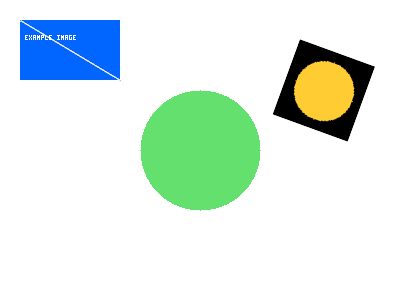
local img = Image.new(Vector2.new(400, 300))
img:Fill(Color3.new(1, 1, 1), 0)

img:DrawCircle(Vector2.new(200, 150), 60, Color3.new(1, 0, 0), 0.25)

img:DrawRectangle(Vector2.new(20, 20), Vector2.new(100, 60), Color3.new(0, 0.4, 1), 0)
img:DrawLine(Vector2.new(20, 20), Vector2.new(120, 80), Color3.new(0, 0, 0), 0.5)

img:DrawText("Example Image", Vector2.new(25, 35), Color3.new(1, 1, 1), 0, 1)

local badge = Image.new(Vector2.new(80, 80))
badge:Fill(Color3.new(0, 0, 0), 0)
badge:DrawCircle(Vector2.new(40, 40), 30, Color3.new(1, 0.8, 0.2), 0)
img:DrawImageTransformed(Vector2.new(300, 40), Vector2.new(1, 1), 20, badge, {PivotPoint = Vector2.new(0.5, 0.5)})

local pngData = Image.toPng(img, true)
io.writefile(pngData, "example.png")
toGif(frames:{Image},frameDelays:{number},options: {},outputLogs:boolean?): string
Encodes multiple Image objects as a raw string encoded as a gif. frameDelays is an array of numbers representing the delay for each frame in seconds. options is a table that can contain the following optional fields:
- loop: number of times to loop the gif (0 for infinite)
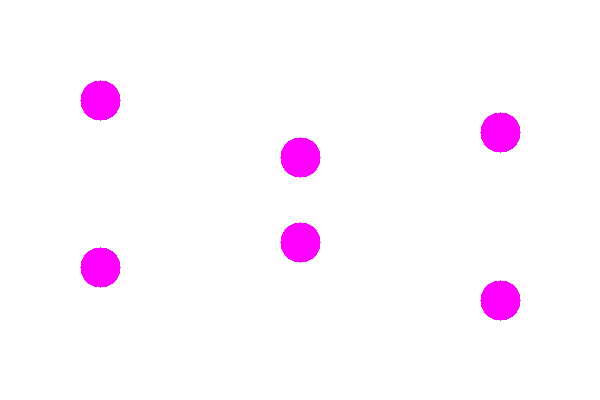
local frames_ball = {}
local durations_ball = {}
local w, h = 200, 200
local total = 40

for i = 1, total do
    local img = Image.new(Vector2.new(w, h))

    img:Fill(Color3.new(1, 1, 1), 0)

    local t = (i - 1) / (total - 1)
    local midX = w / 2
    local midY = h / 2
    local amp = 60
    local y = midY + math.sin(t * math.pi * 2) * amp

    img:DrawCircle(Vector2.new(midX, y), 20, Color3.new(1, 0, 0.866667), 0)

    frames_ball[#frames_ball + 1] = img
    durations_ball[#durations_ball + 1] = 1 / 30
end

local gifData = Image.toGif(frames_ball, durations_ball, nil, true)
io.writefile(gifData, "ball.gif")
plotFunction(function: (x:number) -> (...number), options:{}?) -> Image
Params:
-
function:
- If isParametric: takes t and returns x, y pairs or {x, y} tables
- If isXFunction: takes y and returns one or more x value
- If it returns Boolean then x and y will be passed through the parameter and true will draw a color at the pixel
- Otherwise: takes x and returns one or more y values
-
options - Configuration table with:
- offset: Vector2 - The origin point offset (default: center of image)
- size: Vector2 - The axis ranges in units (x,y) - image will be auto-sized to fit within maxPixelSize
- scale: number - Pixels per unit (auto-calculated to fit within maxPixelSize, but can be overridden)
- maxPixelSize: number - Maximum pixel size for either axis (default: 1024)
- isXFunction: boolean - If true, function returns x from y input (default: false)
- isParametric: boolean - If true, function takes t and returns x, y pairs (default: false)
- tRange: {number} - Range for parametric t parameter (default: {0, 2*pi})
- color: {Color3} | Color3 - List of colors for each curve, or single color (default: list of red, green, blue, etc.)
- backgroundColor: Color3 - Background color (default: black)
- showAxes: boolean - Whether to draw axes (default: true)
- axesColor: Color3 - Color of the axes (default: gray)
- showGrid: boolean - Whether to draw grid lines (default: false)
- gridColor: Color3 - Color of the grid (default: dark gray)
- gridSpacing: number - Units between grid lines (default: 1)
- showLabels: boolean - Whether to show axis labels (default: true)
- labelColor: Color3 - Color of the labels (default: white)
- labelSpacing: number - Units between labels (default: 1)
- labelSize: number - Text scale for labels (default: 1)
- thickness: number - Line thickness in pixels (default: 1)
- filename: string - Output filename (default: "graph.png")
Properties
Size: Vector2
The size of the image in pixels.
Methods
SetPixel((x: number, y: number, color: Color3, transparency: number, combineType: Enum.ImageCombineType?)
Sets the pixel at the specified (x, y) coordinates to the given color and transparency. The optional combineType parameter determines how the new color is combined with the existing color at that pixel. Default is Enum.ImageCombineType.Overwrite.
GetPixel(x: number, y: number): (Color3, number)
Returns the color and transparency of the pixel at the specified (x, y) coordinates.
Fill(color: Color3, transparency: number)
Fills the entire image with the specified color and transparency.
DrawRectangle(position: Vector2, size: Vector2, color: Color3, transparency: number,combineType: Enum.ImageCombineType?)
Draws a rectangle at the specified position with the given size, color, and transparency. The optional combineType parameter determines how the new color is combined with the existing colors in the rectangle area. Default is Enum.ImageCombineType.Overwrite.
DrawLine(startPos: Vector2, endPos: Vector2, color: Color3, transparency: number, combineType: Enum.ImageCombineType?)
Draws a line from startPos to endPos with the specified color and transparency. The optional combineType parameter determines how the new color is combined with the existing colors along the line. Default is Enum.ImageCombineType.Overwrite.
DrawCircle(center: Vector2, radius: number, color: Color3, transparency: number, combineType: Enum.ImageCombineType?)
Draws a circle with the specified center, radius, color, and transparency. The optional combineType parameter determines how the new color is combined with the existing colors in the circle area. Default is Enum.ImageCombineType.Overwrite.
DrawText(text: string, position: Vector2, color: Color3, transparency: number, scale: number?)
Renders the specified text at the given position with the specified color, transparency, and scale.
- The
scaleparameter adjusts the size of the text. It accepts non-integer values (for example,1.5) and will render anti-aliased text using bilinear sampling. - Note: non-integer scales may result in slightly blurry text/unreadable.
- Invalid characters will be ignored.
Example:
local img = Image.new(Vector2.new(300, 100))
img:Fill(Color3.new(1, 1, 1), 0)
img:DrawText("Scale 1.0", Vector2.new(10, 10), Color3.new(0, 0, 0), 0, 1)
img:DrawText("Scale 1.5", Vector2.new(10, 30), Color3.new(0, 0, 0), 0, 1.5)
img:DrawText("Scale 2.0", Vector2.new(10, 55), Color3.new(0, 0, 0), 0, 2)
img:DrawText("Scale 2.25", Vector2.new(10, 80), Color3.new(0, 0, 0), 0, 2.25)

local png = Image.toPng(img, true)
io.writefile(png, "png")
DrawImageTransformed(position: Vector2, scale: Vector2, rotation: number, sourceImage: any, options: {}?)
Draws another image onto this image at the specified position, with scaling and rotation applied. The options table can contain the following optional fields:
CombineType: Enum.ImageCombineType - Determines how the source image is combined with the destination image. Default isEnum.ImageCombineType.AlphaBlend.ResamplerMode: Enum.ResamplerMode - Specifies the resampling mode to use when scaling the source image. Default isEnum.ImageResamplerMode.Bilinear.PivotPoint: Vector2 - The pivot point for rotation in pixels, default is size/2 of the source image.
ReadPixelsBuffer(position: Vector2, size: Vector2): buffer
Returns a buffer containing the raw pixel data of the image.
WritePixelsBuffer(position: Vector2, size: Vector2, pixelBuffer: buffer)
Writes raw pixel data from a buffer to the image at the specified position and size.
GetBuffer(): buffer
Returns the entire image's pixel data buffer
Clone(): Image
Creates and returns a copy of the Image object.
Crop(position: Vector2, size: Vector2): Image
Crops a rectangular region from the image and returns it as a new Image. The region is clamped to the image bounds.
Resize(newSize: Vector2): Image
Returns a new Image resized to newSize using bilinear interpolation.
Color Adjustments
These methods modify the image in-place.
Grayscale()
Converts the image to grayscale using luminance weighting (0.299 R + 0.587 G + 0.114 B). Preserves alpha.
Invert()
Inverts each RGB channel (255 - value). Preserves alpha.
AdjustBrightness(amount: number)
Adds amount (range –255 to 255) to every RGB channel. Clamps to [0, 255].
AdjustContrast(factor: number)
Scales contrast around the midpoint 128. Values > 1 increase contrast; 0 < value < 1 decreases it.
AdjustSaturation(factor: number)
Adjusts color saturation. 0 → grayscale, 1 → unchanged, > 1 → more vivid.
Tint(color: Color3, strength: number)
Blends the image toward color by strength (0–1).
Threshold(cutoff: number?)
Converts to black-and-white by luminance threshold. Pixels with luminance ≥ cutoff become white; others become black. Default cutoff is 128.
Filters
These methods apply visual effects in-place.
Blur(radius: number)
Applies a box blur with the given radius. Fast separable implementation (O(n) per axis).
GaussianBlur(sigma: number)
Applies a Gaussian blur with the given sigma value.
Sharpen()
Applies a 3×3 sharpening kernel.
EdgeDetect()
Applies edge detection using a Laplacian-based kernel.
Emboss()
Applies an emboss (relief) effect.
Pixelate(blockSize: number)
Pixelates the image by averaging each blockSize × blockSize block of pixels.
Dither(levels: number?)
Applies ordered (Bayer) dithering to reduce color depth. Default levels is 4.
Posterize(levels: number)
Reduces the number of distinct tonal levels per channel.
ChromaticAberration(offset: number)
Shifts the red channel left and the blue channel right by offset pixels, simulating lens chromatic aberration.
Vignette(strength: number)
Darkens the edges of the image. strength (0–1) controls how dark the corners become.
Geometry
FlipHorizontal()
Mirrors the image left-to-right in-place.
FlipVertical()
Mirrors the image top-to-bottom in-place.
Rotate90(times: number)
Rotates the image 90° clockwise times times in-place.
Analysis & Utility
GetHistogram(): { r: {number}, g: {number}, b: {number} }
Returns three 256-entry tables counting how many pixels have each intensity value for R, G, and B channels respectively. Indices are 0–255.
AutoLevels()
Stretches each color channel to use the full 0–255 range
Compare(otherImage: Image): Image
Returns a new Image showing the absolute per-channel difference between this image and otherImage. Bright pixels indicate large differences; black pixels are identical. The output size is the minimum of both images' dimensions.
AlphaErode(threshold: number?)
Sets pixels with an alpha value below threshold fully transparent. Useful for removing semi-transparent fringe pixels. Default threshold is 10.